


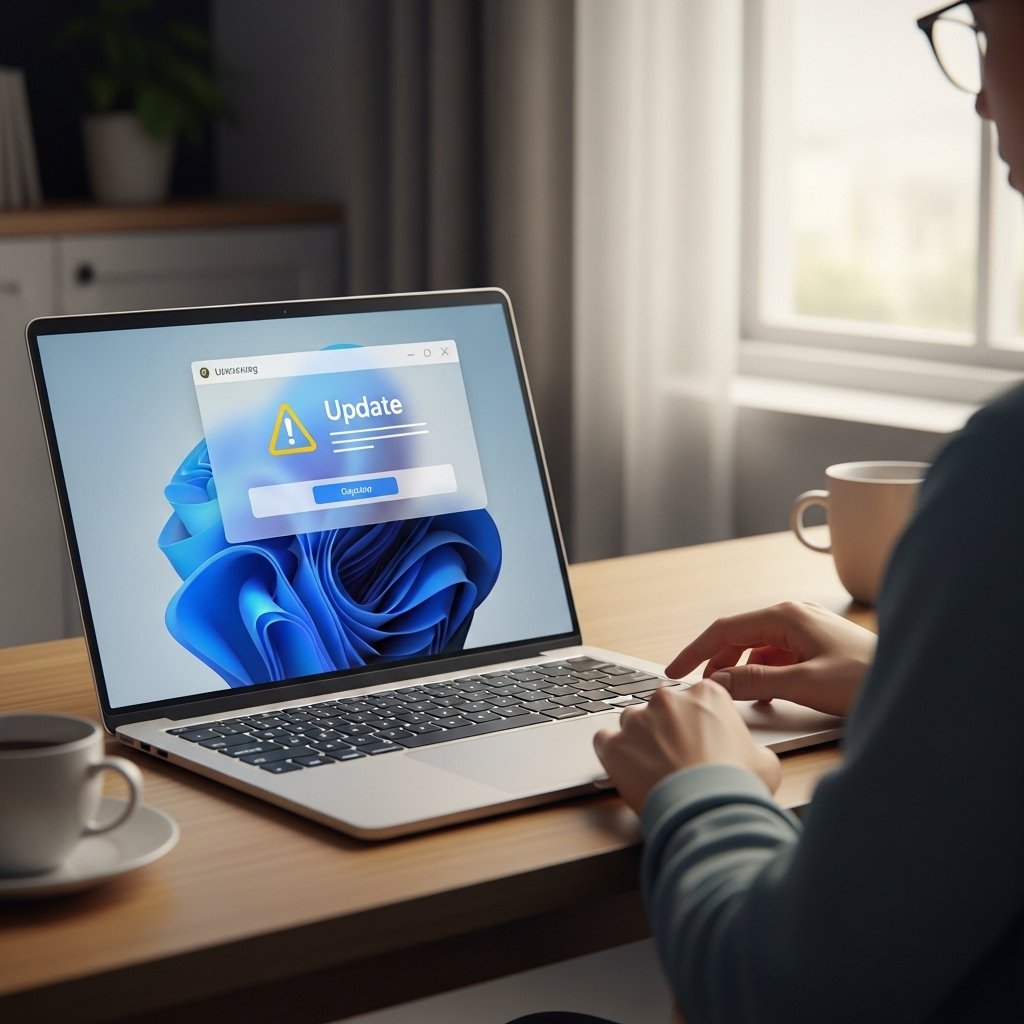
Your browser suddenly shows a message.
“Your device is outdated.”
“Update required immediately.”
“Security risk detected.”
It looks urgent. It looks official. It may even use familiar logos.
Fake update popups are one of the most common ways attackers install malware, steal credentials, or gain remote access to devices.
Knowing how to recognize them can prevent serious damage.
What Are Fake Update Popups?
Fake update popups are deceptive messages that claim your browser, software, or device needs an urgent update.
Instead of installing a legitimate update, the download may contain:
Malware
Spyware
Ransomware
Remote access tools
Credential stealing software
These popups often appear while browsing compromised websites or clicking malicious ads.
Why They Work
Update notifications are normal.
Browsers and apps regularly require updates for security and performance.
Attackers exploit that familiarity.
The popup often looks convincing because it:
Imitates browser design
Uses recognizable brand colors
Displays official looking icons
Includes fake version numbers
The goal is to trigger urgency before you think critically.
Common Fake Update Scenarios
Fake Browser Update
You see a message claiming your browser is outdated and must be updated to continue.
Clicking the download installs malware disguised as an installer file.
Fake Flash or Media Player Update
Even though Flash is obsolete, fake update messages still circulate claiming you need a media plugin.
This is always suspicious.
“Virus Detected” Popups
A full screen alert claims your device is infected and urges you to download a “security fix.”
These are often scare tactics designed to push immediate downloads.
Fake Mobile App Updates
On mobile devices, fake ads may claim your app is outdated and redirect you to unofficial download links.
Legitimate updates come through official app stores.
Red Flags to Watch For
Popups that appear while browsing random websites
Urgent language demanding immediate action
Downloads triggered automatically
Requests to disable security settings
Spelling or grammar errors
Update links that do not lead to official websites
Real system updates do not appear as random browser popups on unrelated websites.
How Legitimate Updates Work
Real updates typically:
Come through built in system notifications
Appear inside the application itself
Are delivered via official app stores
Do not require visiting third party websites
If you are unsure, close the popup and check manually.
Go directly to:
The official website
Your device settings
The official app store
Never rely on the popup itself.
What To Do If You Clicked
If you downloaded a suspicious file:
Do not open it if possible.
Delete it immediately.
Run a trusted security scan.
Disconnect from the internet if malware is suspected.
If you already installed it:
Disconnect from the network.
Scan the device with reputable security software.
Change important passwords from a different secure device.
Monitor accounts for unusual activity.
Act quickly to limit damage.
How to Protect Yourself
Keep your operating system updated through official channels.
Enable automatic updates when possible.
Use reputable security software.
Avoid clicking popups on unfamiliar sites.
Use an ad blocker to reduce malicious advertising exposure.
Prevention reduces exposure significantly.
Final Thoughts
Fake update popups rely on urgency and fear.
They want you to react quickly and click without verifying.
Slow down.
Close the popup.
Check for updates manually through official sources.
If a message demands immediate download outside official channels, treat it as suspicious.
Software updates protect your device. Fake updates compromise it.